
For years, I have used Google Sheets as a sort of lightweight backend for web projects: listings, statistics, price tables, or data that needed to be updated without touching code. At the time, combining Google Sheets with jQuery was almost trivial… until Google changed the rules of the game.
Many old tutorials are still circulating, but today they no longer work or they only work halfway. In this article, I explain how to do it correctly now, what has changed, and what options remain valid if you want to continue using jQuery.
Spreadsheets are being used more and more; with the rise of cloud storage, it is extremely simple to work with spreadsheets regardless of where we are and from any device; an example of this versatility is offered by Google Sheets, and with the jQuery Sheetrock plugin, we can easily display spreadsheet data on any website.
The truth is not that it embeds a spreadsheet into a website; it simply copies the content of the rows and columns into an HTML table. In this post, we will see how to incorporate this plugin into our website and several of its configurations.
Why Google Sheets is still a good data source for the web
Google Sheets as a lightweight backend
Google Sheets remains a very practical solution when:
- You don't need a complex database
- The data needs to be editable by non-technical people
- You want immediate updates without deployments
In more than one project, I have used it simply as a data source, not as something that is embedded: the sheet lives in Google and the web consumes and transforms that data.
Advantages over traditional databases
- Access from anywhere
- Version control and permissions
- Direct export to JSON
- Zero cost for small projects
Real use cases
- Rankings
- Statistics
- Directories
- Informational tables
- Data visualization
What changed in Google Sheets and why many examples no longer work
End of old Google Spreadsheets feeds
If you used URLs like:
https://spreadsheets.google.com/feeds/list/...That belonged to API v3, which is now obsolete.
Many old examples using $.getJSON() fail simply because Google closed those endpoints.
Common problems when using old tutorials
- 404 or 403 errors
- Empty responses
- CORS issues
- Apparently correct code that never returns data
I have found myself more than once debugging code that "had always worked," until remembering that Google no longer offers those public feeds.
Current requirements for using Google Sheets with jQuery
Making a spreadsheet public (when to do it and when not to)
For simple examples:
Share → “Anyone with the link” → Viewer
⚠️ Important: do not use public sheets for sensitive data.
Google Sheets API v4: basic concepts
Now access goes through the official API, which returns structured and stable data.
You need:
- Spreadsheet ID
- Cell range
- (Usually) an API Key
- API Key and usage limits
The key:
- Created in the Google Cloud Console
- Has limits, but sufficient for small projects
- Can be restricted by domain
How to get Google Sheets data in JSON using jQuery
URL structure with API v4
Endpoint example:
https://sheets.googleapis.com/v4/spreadsheets/SPREADSHEET_ID/values/SHEET!A:C?key=API_KEYThis returns a clean and easy-to-traverse JSON.
AJAX request with jQuery
Here jQuery is still perfectly valid:
<script src="https://ajax.googleapis.com/ajax/libs/jquery/3.7.1/jquery.min.js"></script>
<script>
$.getJSON(url, function(response) {
 console.log(response.values);
});
</script>
Although today I would use fetch, many legacy projects still depend on jQuery, and there is no problem with maintaining it.
Handling CORS and common errors
- The official API does not have CORS issues
- If you get a 403, check permissions or the API Key
- If there is no data, check the requested range
Displaying Google Sheets data in an HTML table
Traversing the JSON returned by the API
The response includes an array of rows:
response.values.forEach(function(row, index) {
 if(index === 0) return; // saltar encabezados
});
Dynamic construction of rows and columns
A classic pattern I still use:
var html = '';
row.forEach(function(cell) {
 html += '<td>' + cell + '</td>';
});
$('#statistics').append('<tr>' + html + '</tr>');
Performance best practices
- Do not request giant ranges
- Cache results if possible
- Do not rebuild the DOM in each iteration
Is jQuery Sheetrock still useful today?
What Sheetrock did well
- When I used it, Sheetrock simplified things a lot:
- SQL-like queries
- Direct transformation to tables
- Less repetitive code
Current limitations
- Depended on old feeds
- Not aligned with API v4
- Limited maintenance
When to use it and when not to
- ✔ Legacy projects that already use it
- ❌ New or long-term projects
Today I prefer direct control of the API to avoid surprises.
Modern alternatives if you don't want to depend only on jQuery
Native JavaScript (fetch)
Lighter and more standard:
fetch(url)
 .then(res => res.json())
 .then(data => console.log(data));
Compatible visualization libraries
- Google Charts
- Chart.js
- DataTables
When it makes sense to migrate
- If you are modernizing the frontend
- If you no longer need jQuery for anything else
- If the project is going to grow
Frequent errors when working with Google Sheets and jQuery
- Exposing sensitive data
- A public sheet is visible to anyone with the link.
- Using excessively large sheets
- Google Sheets is not a massive database.
- Relying on outdated examples
- The most common error. If you see feeds/list, be wary.
Legacy use of jQuery sheetrock
If you still want to use this package for testing, here is the original tutorial.
Download the plugin and install it within your website along with a version of jQuery:
<script type="text/javascript" src="jquery.min.js"></script> <script type="text/javascript" src="jquery.sheetrock.min.js"></script>jQuery Sheetrock Examples
In all cases, regardless of the configuration used, we will need a table where we can see the data from the spreadsheet:
<table id="statistics"></table>Minimum configuration for jQuery Sheetrock
This is the minimum configuration that must be used to display the data associated with a spreadsheet:
$('#statistics').sheetrock({
  url: mySpreadsheet
});
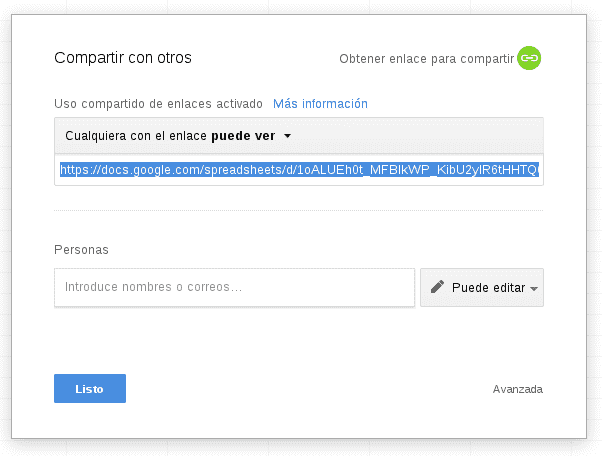
Where mySpreadsheet is the path to our spreadsheet; to use a spreadsheet we first have to share the spreadsheet in Google Drive; with our sheet open:
Share it by pressing the button located in the upper corner called "Share":

And copy the URL:
Using SQL to compose data with jQuery Sheetrock
We can perform several operations through SQL:
Filters, indicating which columns we want to show based on a condition with the where clause:
$($('#statistics').sheetrock({
  url: mySpreadsheet,
   sql: "select A,B,C where A = 'Andrés'",
});| Name | Last Name | Salary |
|---|---|---|
| Andrés | Cruz | 2000$ |
| Andrés | Ramirez | 2200$ |
Ordering, indicating by which column we want to order the records:
$('#statistics').sheetrock({
  url: mySpreadsheet,
   sql: "select A,C,E order by E desc",
});| Name | Salary | Order |
|---|---|---|
| Andrés | 2200$ | 4 |
| Juan | 2500$ | 3 |
| Erick | 1500$ | 2 |
| Andrés | 2000$ | 1 |
Frequently Asked Questions about Google Sheets with jQuery
- Do I always need an API Key?
- For API v4, yes, except for very specific cases.
- Can I use private sheets?
- Only with OAuth authentication (not recommended for simple examples).
- Is it a good idea for production?
- For small and medium projects, yes. For large volumes, no.
Conclusion: when and how to use Google Sheets with jQuery in 2026
Google Sheets with jQuery is still viable, but it is no longer "copy and paste."
If you understand Google's changes, use the correct API, and limit the scope, it remains a fast, flexible, and very practical solution.
I still use it myself when I need speed, simplicity, and control, knowing exactly where the limits are.