
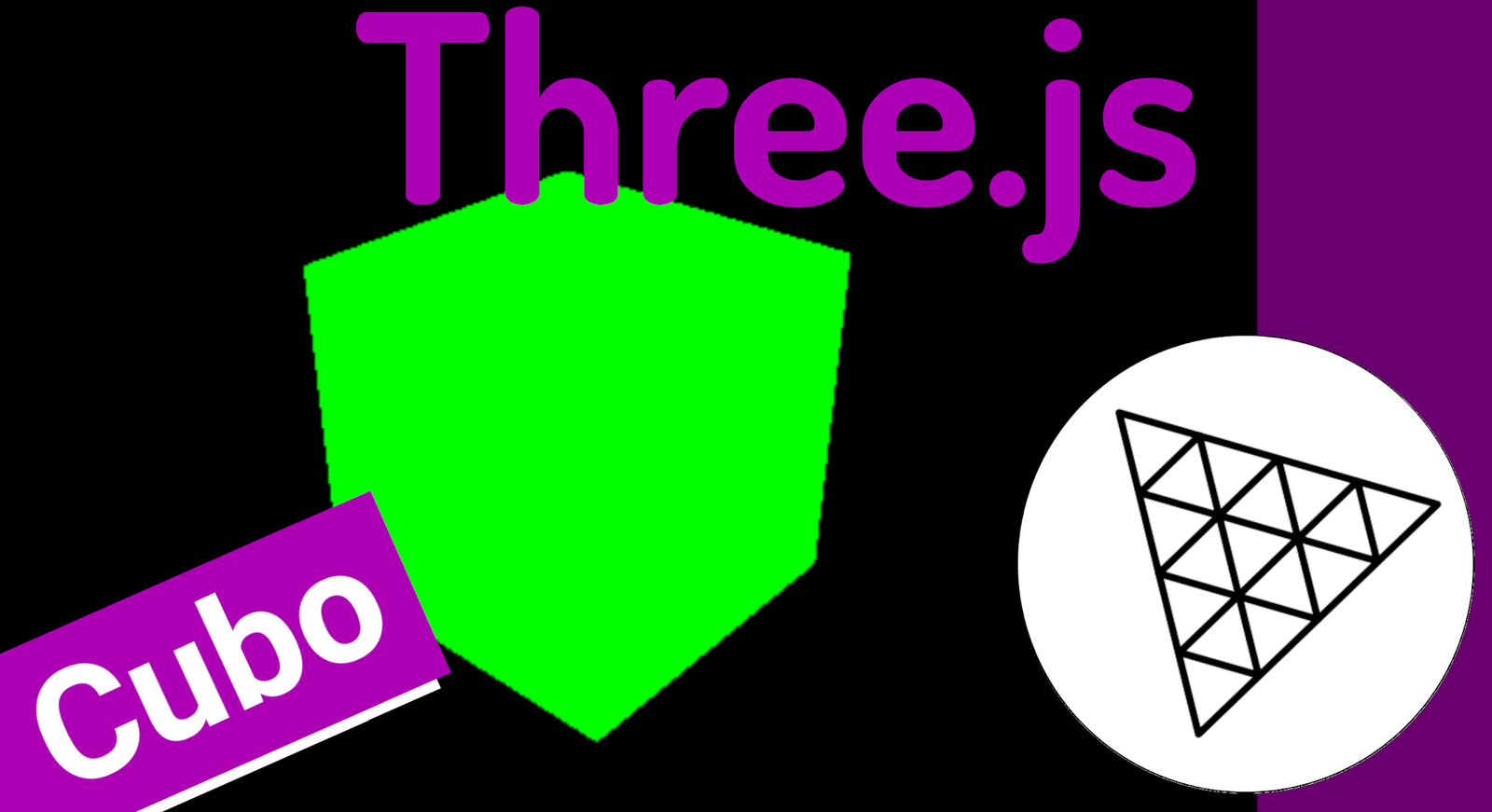
In this post, we are going to take the first steps with Three.js, creating a simple scene with several types of figures.
The cube is the favorite element that appears in software like Blender as the first geometric figure; for this, we need to complete 3 steps.
Fundamental Elements in Three.js
To render an object in Three.js we need 3 elements:
- The first element is the camera. The camera is the eye or the medium through which we can visualize our geometric figures. It can have various configurations depending on the needs, but usually a perspective camera is used, which allows visualization as if it were the human eye, meaning we can see depth.
- Another essential element is the scene. The scene is the space where we place our figures, in this example, a cube; therefore, you can think of it as the universe, which is nothing more than an empty space in which stars, planets... exist.
- Finally, we have our geometric figures, which is what we want to visualize; we can animate them, apply geometric operations such as translation, rotation, scaling, apply colors, materials, among others.
There is a fourth element which is the renderer, which is nothing more than the rendering engine that supports everything else.
Creating Our First Geometric Figure: A Cube
The class code, with this we have the minimum example of creating a Three.js scene that consists of a scene, camera, render process, and a figure:
<!DOCTYPE html>
<html>
    <head>
        <meta charset="utf-8">
        <title>My first three.js app</title>
        <style>
            body { margin: 0; }
        </style>
    </head>
    <body>
        <script src="js/three.js"></script>
        <script>
            const scene = new THREE.Scene();
            const camera = new THREE.PerspectiveCamera( 80, window.innerWidth / window.innerHeight, 0.1, 1000 );
            const renderer = new THREE.WebGLRenderer();
            renderer.setSize( window.innerWidth, window.innerHeight );
            document.body.appendChild( renderer.domElement );
            const geometry = new THREE.BoxGeometry();
            const material = new THREE.MeshBasicMaterial( { color: 0x00ffff } );
            const cube = new THREE.Mesh( geometry, material );
            cube.position.y = 1
            scene.add( cube );
            camera.position.z = 2;
            renderer.render(scene, camera);
        </script>
    </body>
</html>
Explanation of the Previous Code
We create the render process with:
const renderer = new THREE.WebGLRenderer();
renderer.setSize( window.innerWidth, window.innerHeight );
In which we specify the screen size.
And we add it to the DOM:
document.body.appendChild( renderer.domElement );We also create the camera and the scene:
const scene = new THREE.Scene();
const camera = new THREE.PerspectiveCamera( 80, window.innerWidth / window.innerHeight, 0.1, 1000 );
We create a 3D figure; for that we have to create the geometry:
const geometry = new THREE.BoxGeometry();And the material, which can be several types, but the simplest is this one, where we can indicate a color:
const material = new THREE.MeshBasicMaterial( { color: 0x00ffff } );We position it where we want with:
cube.position.y = 1 We add the scene:
scene.add( cube );We reposition the camera:
camera.position.z = 2;And finally, we fire the render:
renderer.render(scene, camera);With this, we have a simple scene like the one shown on the cover of this publication.
Creating Wireframe or Mesh
We can easily activate the wireframe or mesh on our geometric figures using the `wireframe` option in the different meshes we create in Three.js.
Starting from a basic mesh for a cube, like the one we saw previously to create our first scene in Three.js:
const geometry = new THREE.BoxGeometry(4,4,4)
const material = new THREE.MeshBasicMaterial({ color: 0x00FF00})
We add the `wireframe` option; you can do this for most meshes supported by Three.js:
const geometry = new THREE.BoxGeometry(4,4,4)
const material = new THREE.MeshBasicMaterial({ color: 0x00FF00, wireframe: true })
And that's it; for the rest, we add it to the scene and we will have a figure like the one on the cover:
const cube = new THREE.Mesh( geometry, material )
scene.add( cube )
Creating a Sphere
In Three.js we have different figures that we can create, from rectangles or boxes as we saw in the first scene with Three.js, to spheres; to draw a sphere, we have the `SphereGeometry` function that obligatorily receives the radius, and the number of segments for the width and height:
THREE.SphereGeometry(20, 20, 20);For the rest, it follows the same structure as any other geometric figure that you want to establish; that is, passing the mesh and adding it to the scene:
var sphereGeometry = new THREE.SphereGeometry(20, 20, 20);
var sphereMaterial = new THREE.MeshBasicMaterial({
    color: 0x7777FF,
    wireframe: true
});
var sphere = new THREE.Mesh(sphereGeometry, sphereMaterial);
sphere.position.set(20, 4, 2);
scene.add(sphere);
Applying Rotations to Geometric Figures
In Three.js, the axes in its 3D environment for rotating 360 degrees require us to use radians, and with this we have to use PI; where a full PI is equivalent to 180 degrees; in this case, we want 180 degrees, that is, half a PI:
cube.rotation.x = Math.PI * .5In the previous example, we are applying it to a cube, which was the first geometric figure in Three.js that we created previously.
Creating a Plane
Like the sphere in Three.js that we generated previously, the important thing to note is that only the name of the geometric figure changes; in this case, the one for the plane is `PlaneGeometry`, which receives the width and length of the plane as parameters
const geometryPlane= new THREE.PlaneGeometry(14, 5)For the rest, you have to define the material and add it to the scene:
// plane
const geometryPlane= new THREE.PlaneGeometry(14, 5)
const materialPlane= new THREE.MeshBasicMaterial({ color: 0xFF0000, wireframe: false })
const plane= new THREE.Mesh( geometryPlane, materialPlane)
scene.add(plane)
Once the plane is added, you can vary its geometric transformations, for example:
//* POSITIONS
cube.position.x = -5
cube.rotation.x = Math.PI * .5
plane.rotation.x = Math.PI * -0.5
plane.position.set(0,-2,1)
Generating a Cartesian Axis
We are going to generate a helper figure, such as the 3D axis; with this, we will easily know where each of the 3D axes are; as such, it is not a figure with which we can make scenes:
const axesHelper = new THREE.AxesHelper( 10 );
scene.add( axesHelper );
I agree to receive announcements of interest about this Blog.
Learn the fundamentals of Three.js and create your first 3D scene from scratch. This beginner's guide will teach you step-by-step how to set up the camera and renderer, and how to generate geometric shapes like cubes, spheres, and planes, applying rotations and materials.